

Summary
- Introduction
- Understand the Graph API call
- Build your PowerAutomate
- Demo
- Save your document into SharePoint (Optionnal)
- Download demo solution
1. Introduction
Everybody has faced one day one of these business questions:
- “Can you export all the data into a PDF?”
- “Can you through the app, convert my document into a PDF?”
And it was not simple without paying a tierce connector… until I found out that you can do it through Graph API.
⚠️ Even though it is possible, exporting data into a document is an outdated approach and is not recommended. You might face a lag between the data in your database and the data in your export, and once the data leaves your system, it is no longer under your control.
Please note, a Power Automate Prenium licence is mandatory for this solution.
I was able to convert, .docx, .xlsx, .pptx and .html.
2. Understand the Graph API call
The graph API to convert a document into PDF is as following:
https://graph.microsoft.com/v1.0/sites/00000000-0000-0000-0000-000000000000/drives/b!3LSfMRGLxxxxxxxxxxxxxxxxxxxxxx/root:/Dossier/Nom du fichier.pptx:/content?format=pdf
To understand, this is how it is composed:
https://graph.microsoft.com/v1.0/sites/[SP SITE ID]/drives/[DRIVE ID]/root:/[FOLDER]/[FILE NAME WITH EXT]:/content?format=pdf
But this url won’t return you a binary file. It will failed into Power Automate, if succeed, you are going to receive a 302 code and a temporary presigned link in the header to download the url. Headers > Location.
3. Build your Power Automate
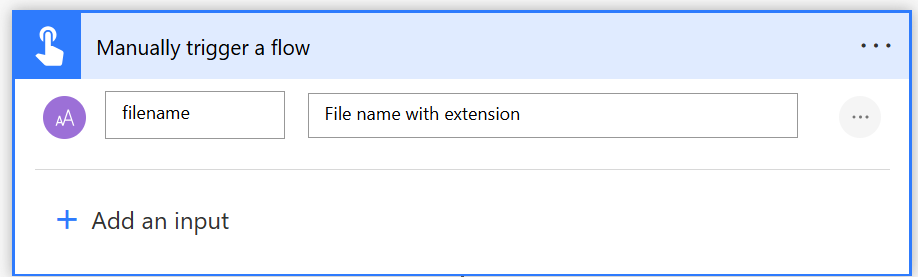
3.1. Set your input
As input of my flow, I have the filename I want to convert into PDF.
3.2. Find your SharePoint ID
There are multiple ways to find or get your SharePoint ID, but we want to retrieve it within the Power Automate flow. The easiest way to do so is to use an environment variable and an API Rest call.
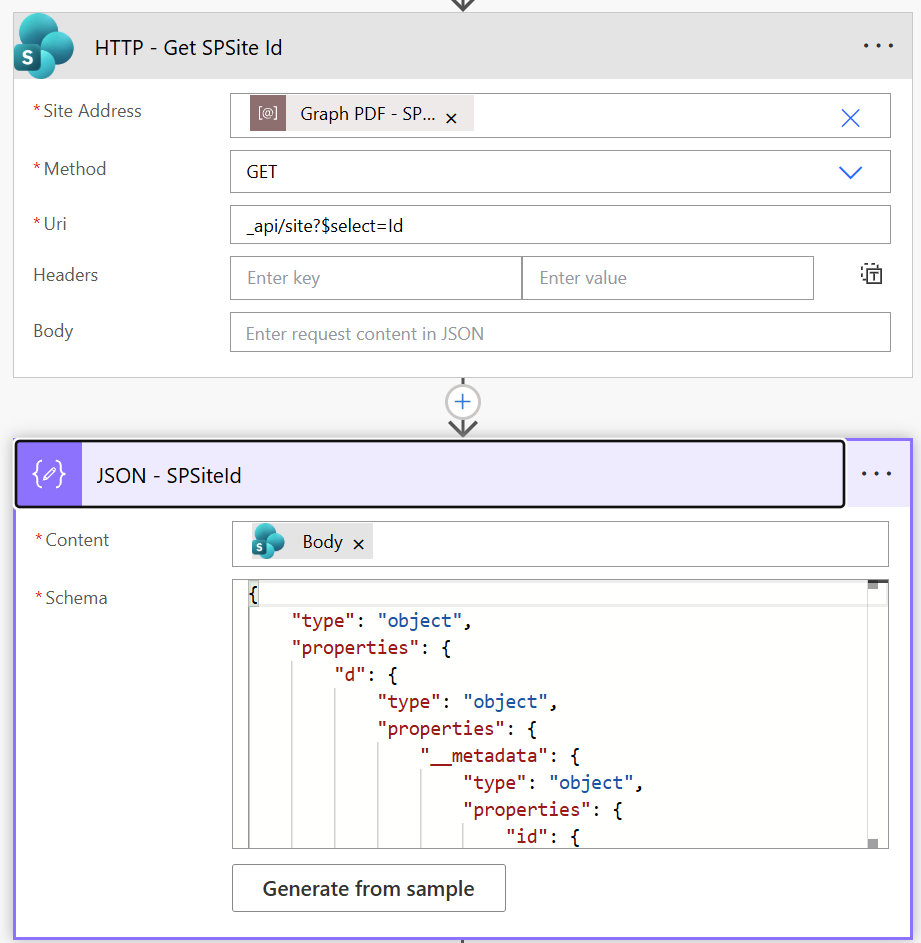
In case of you want to copy paste:
| Label | Value |
|---|---|
| URI | _api/site?$select=Id |
| Json Schema | { “type”: “object”, “properties”: { “d”: { “type”: “object”, “properties”: { “__metadata”: { “type”: “object”, “properties”: { “id”: { “type”: “string” }, “uri”: { “type”: “string” }, “type”: { “type”: “string” } } }, “Id”: { “type”: “string” } } } } } |
3.3. Get all drive ID From SharePoint
The drive ID is going to be returned by a Graph API call. All you need is the SharePoint ID that you retrieved in the previous step.
Please note that we are going to use ‘HTTP with Microsoft Entra ID (pre-authorized)’, and please pay close attention to the connection reference — when creating it, it should have the following inputs.
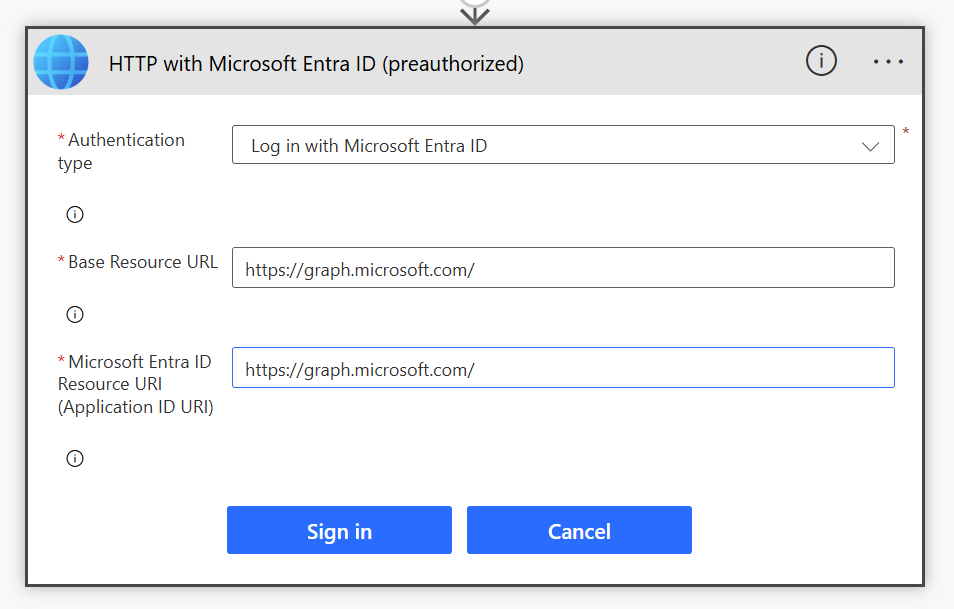
If you need to copy paste, please find below:
Use HTTP with Microsoft Entra ID (preauthorized) to get all the drives.
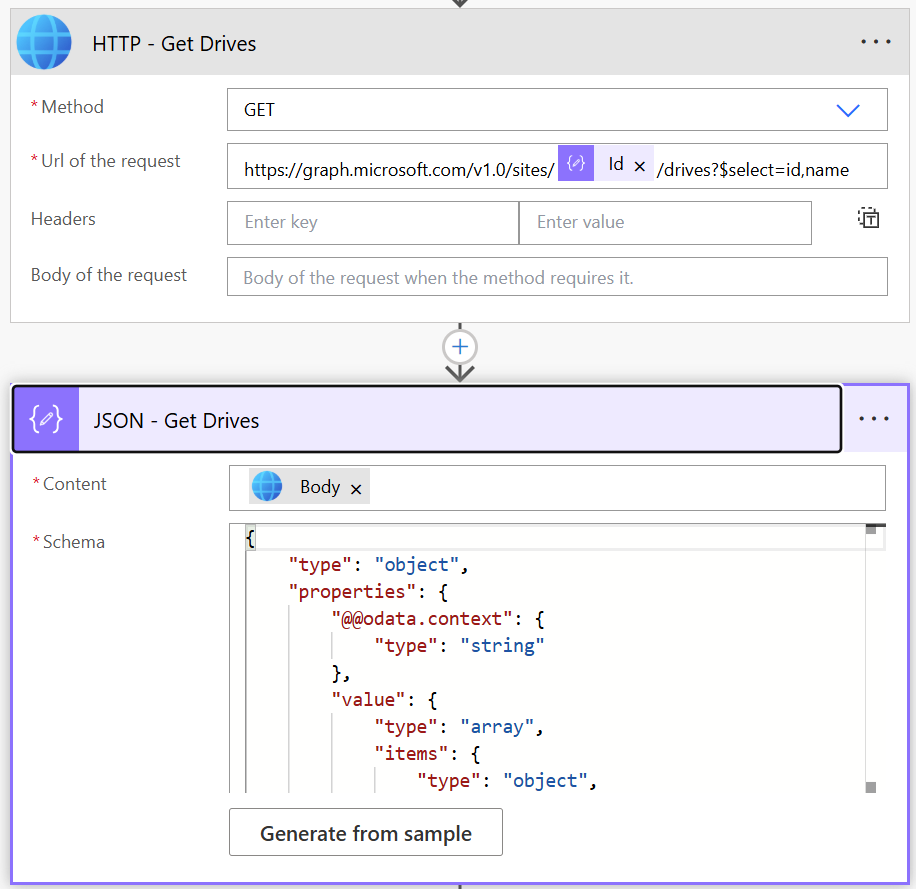
Data to copy/Paste below:
| Label | Value |
|---|---|
| URI | https://graph.microsoft.com/v1.0/sites/@{body(‘JSON_-_SPSiteId’)?[‘d’]?[‘Id’]}/drives?$select=id,name |
| Json Schema | { “type”: “object”, “properties”: { “@@odata.context”: { “type”: “string” }, “value”: { “type”: “array”, “items”: { “type”: “object”, “properties”: { “id”: { “type”: “string” }, “name”: { “type”: “string” } }, “required”: [ “id”, “name” ] } } } } |
3.4. Filter to get your drive
As you see, I select name in the previous call. This is the Title of your library. Two options here:
- You know the title, so jump to the filter section
- You are using an environment variable so you need to get the Title
In the following scenario, I am using an environment variable. The best way is to use SharePoint Rest API.
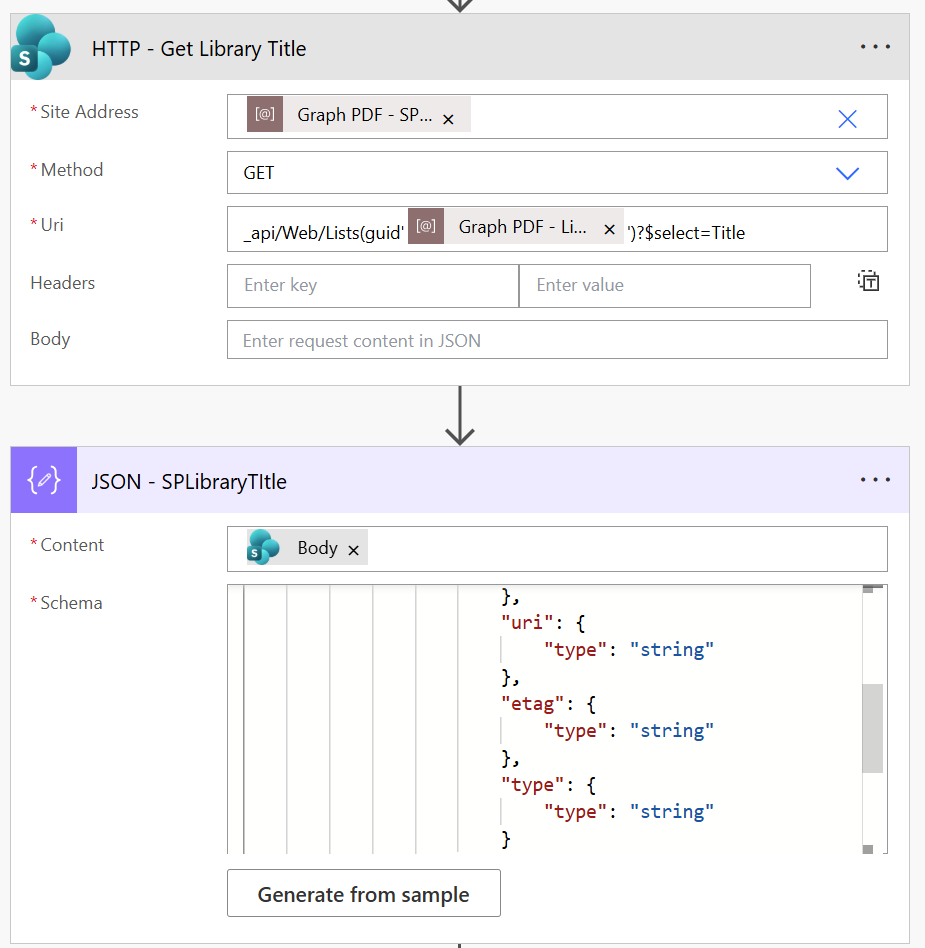
Data to copy/Paste below:
| Label | Value |
|---|---|
| URI | _api/Web/Lists(guid'[ENV VAR OF YOUR SP LIBRARY]’)}’)?$select=Title |
| Json Schema | { “type”: “object”, “properties”: { “d”: { “type”: “object”, “properties”: { “__metadata”: { “type”: “object”, “properties”: { “id”: { “type”: “string” }, “uri”: { “type”: “string” }, “etag”: { “type”: “string” }, “type”: { “type”: “string” } } }, “Title”: { “type”: “string” } } } } } |
Then, filter the Drives you have received at step 3.3
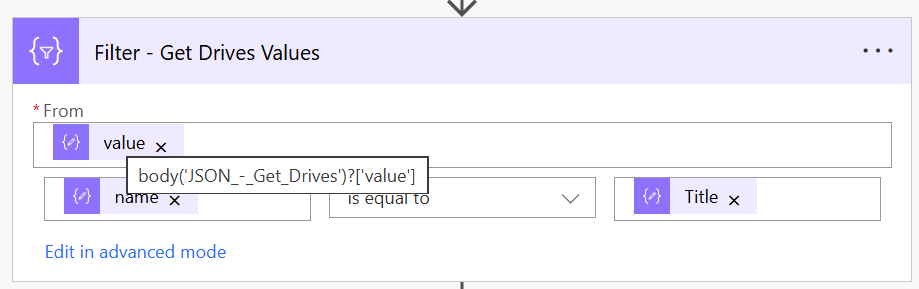
And to keep going, with one value only, initiate a variable and save your drive id into it.
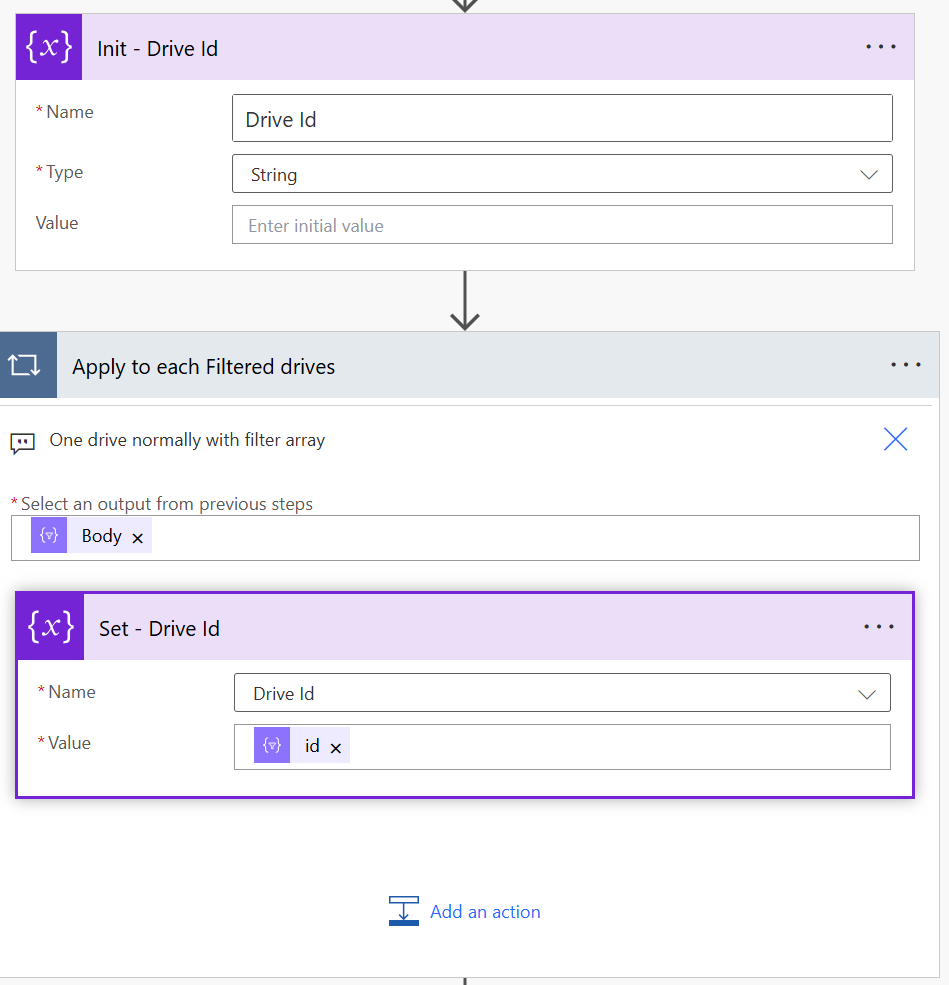
3.5. Convert your file into PDF
Now, call the following url with HTTP with Microsoft Entra ID (preauthorized).
https://graph.microsoft.com/v1.0/sites/[SP SITE ID]/drives/[DRIVE ID]/root:/[FOLDER]/[FILE NAME WITH EXT]:/content?format=pdf
Now once called, it is going to fail. which is normal.
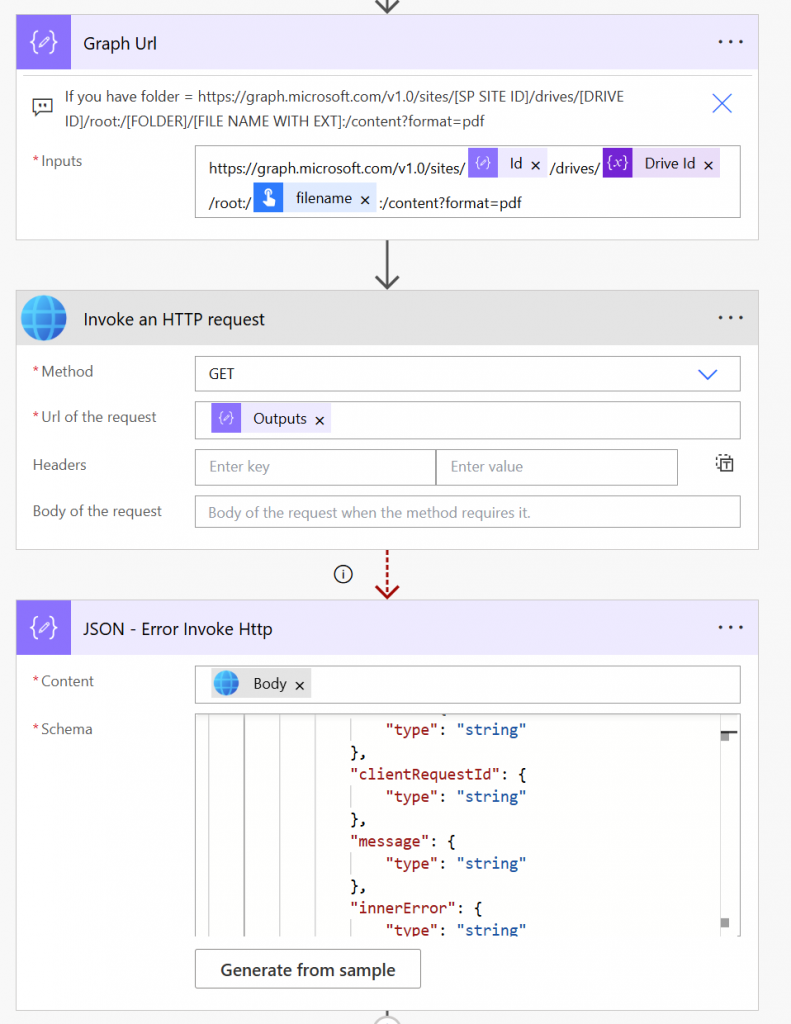
Chek for the code 302, which means it has succeeded. Graph is going to generate a temporary pre-signed url, this url is going to be in the header of the response.
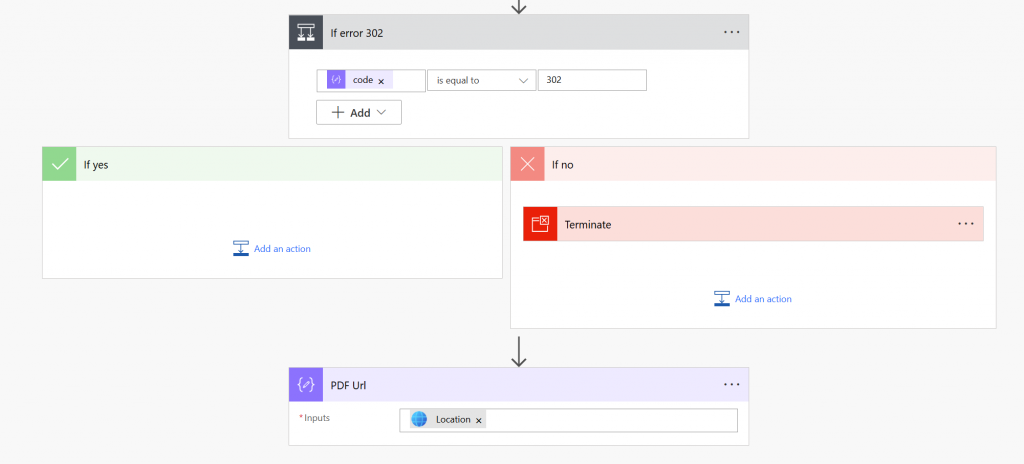
| Label | Value |
|---|---|
| Json Schema | { “type”: “object”, “properties”: { “error”: { “type”: “object”, “properties”: { “code”: { “type”: “integer” }, “source”: { “type”: “string” }, “clientRequestId”: { “type”: “string” }, “message”: { “type”: “string” }, “innerError”: { “type”: “string” } } } } } |
| Code | body(‘JSON_-_Error_Invoke_Http’)?[‘error’]?[‘code’] |
| Presigned Url | outputs(‘Invoke_an_HTTP_request’)?[‘headers’]?[‘Location’] |
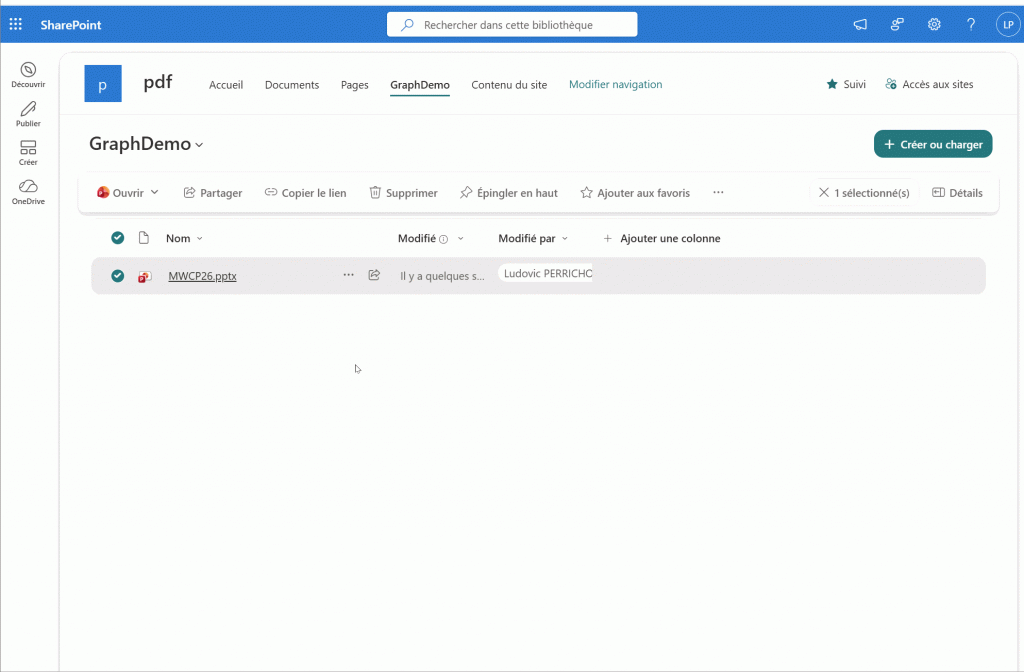
4. Demo
5. Save your document into SharePoint (Optionnal)
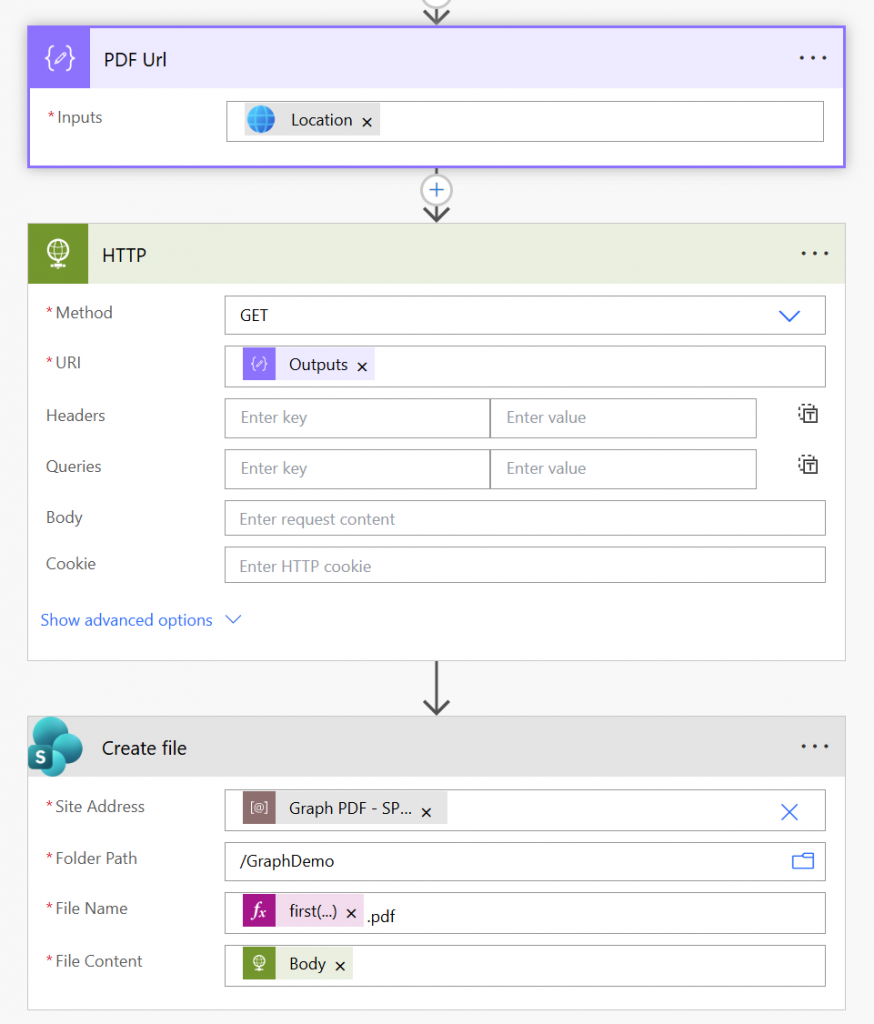
To save your document into SharePoint, call the presigned url with HTTP, then create a file into SharePoint
6. Download demo solution
Find an unmanaged solution of the demo i, my Github: ludovicperrichon/Graph-FromDocToPdf: Find the solution from the post how to convert a document into PDF with Graph API and PowerAutomate